How to Install Our App
on Your TV
Install on your TV in a few steps. (We're also working on Roku TV support.)
Your Downloader code
Enter this code in the Downloader app to start the installation.
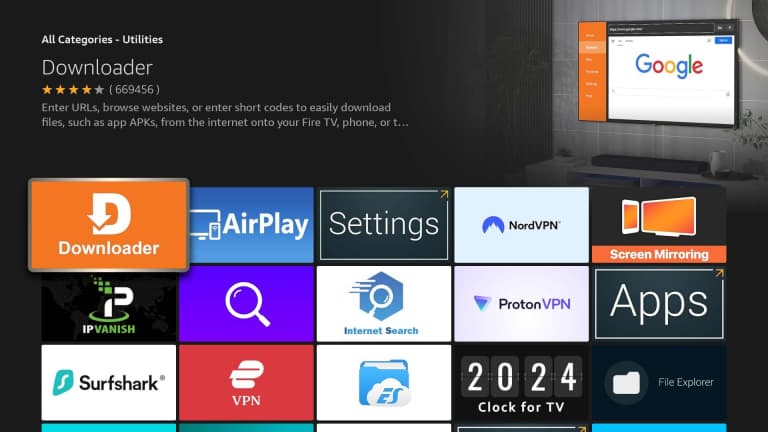
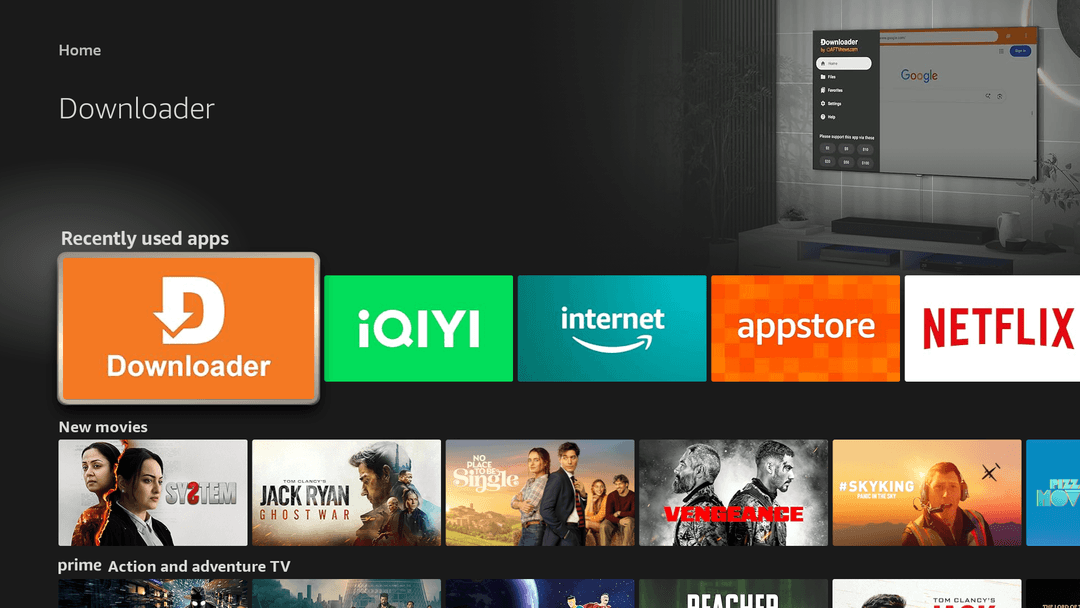
Install Downloader on your TV
Go to your TV's app store (such as Google Play or Amazon Appstore), search for "Downloader", and select "Install".
Enable Developer Mode
Your TV needs Developer Mode turned on before it will let you install apps from Downloader. This is a one-time setup.
- 1Go to Settings > System > About.
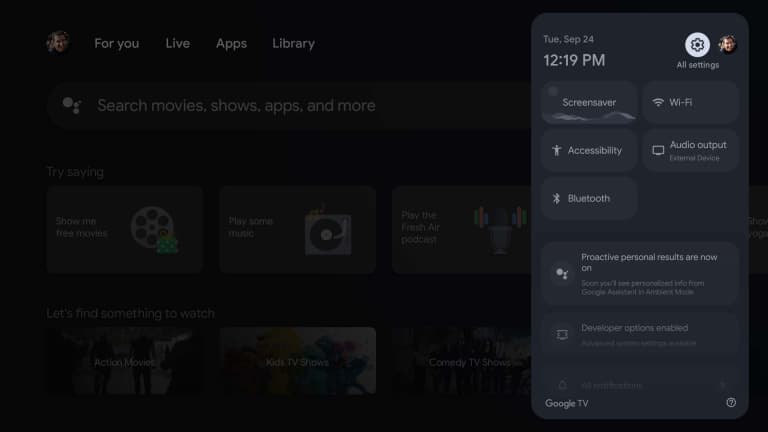
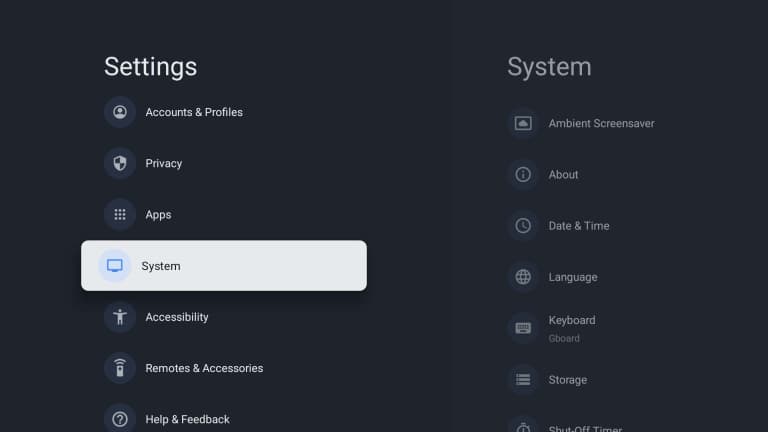
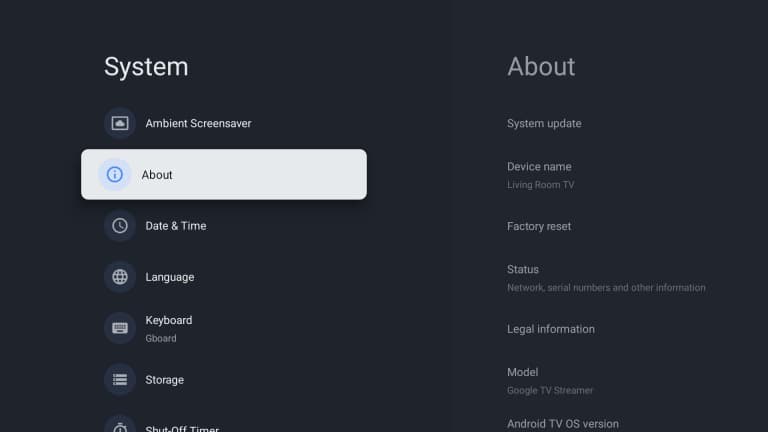
- 2Scroll to the bottom and select "Android TV OS build" about 7 times.
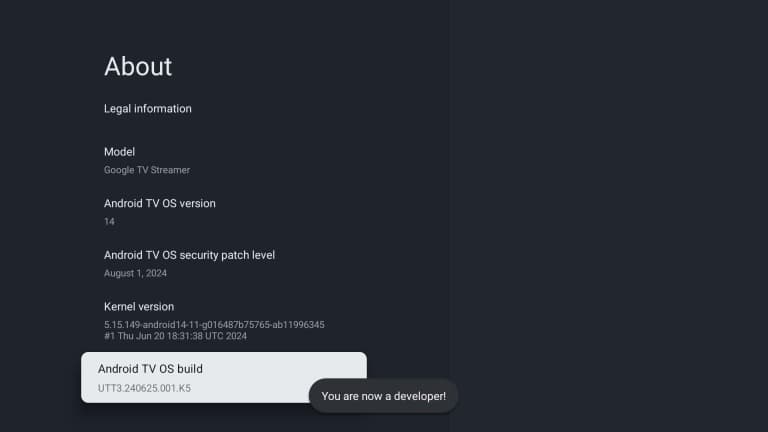
- 3You’ll see "You are now a developer!" once it’s enabled.
Open Downloader
After installation, open Downloader from your Apps list.
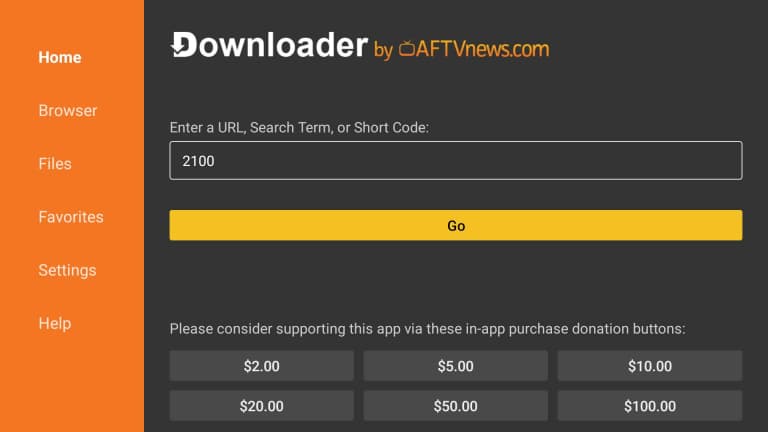
Enter the Download Code
In the "Enter a URL or Search Term" field, enter our App's download code.
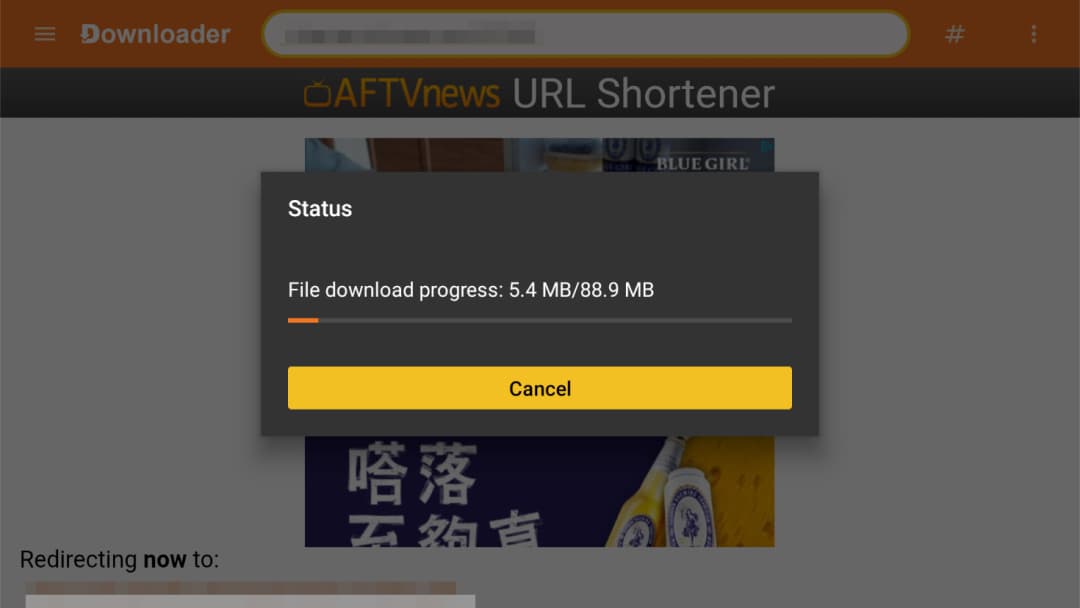
Download the App
Click "Go", and Downloader will start downloading the app installation file.
Allow Installs from Unknown Sources
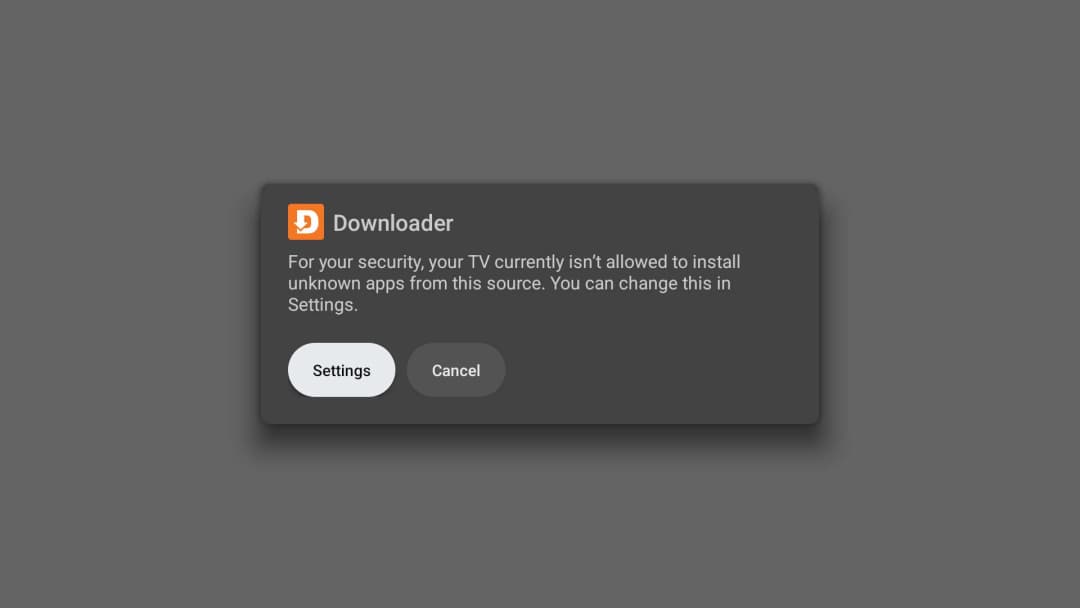
The first time you sideload an app, your TV will block the install. You need to grant Downloader permission to install apps before you can continue.
- 1When the download finishes, a security message appears. Select "Settings" in that message.
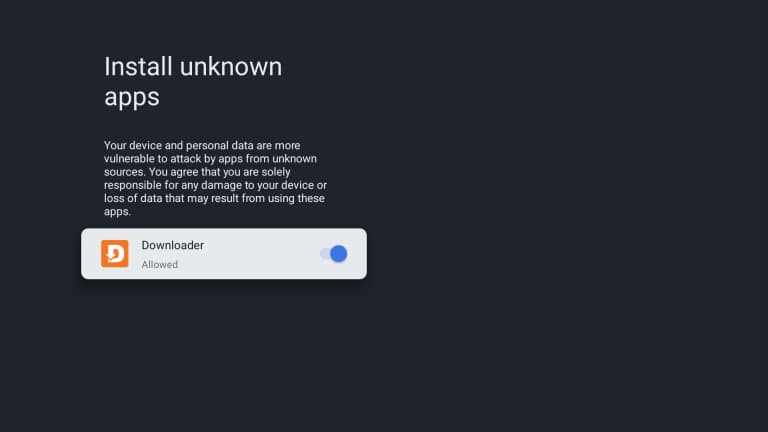
- 2On the "Install unknown apps" screen, find and select "Downloader".
- 3Toggle the switch to "Allowed", then go back to finish the install.
Install the App
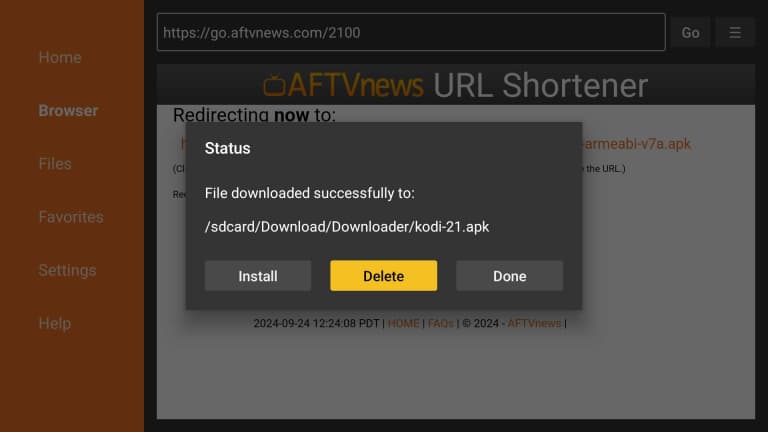
Once the permission is granted, click "Install" to install the app. After installation, you can open and use it on your TV!
Open the App and Find the QR Code
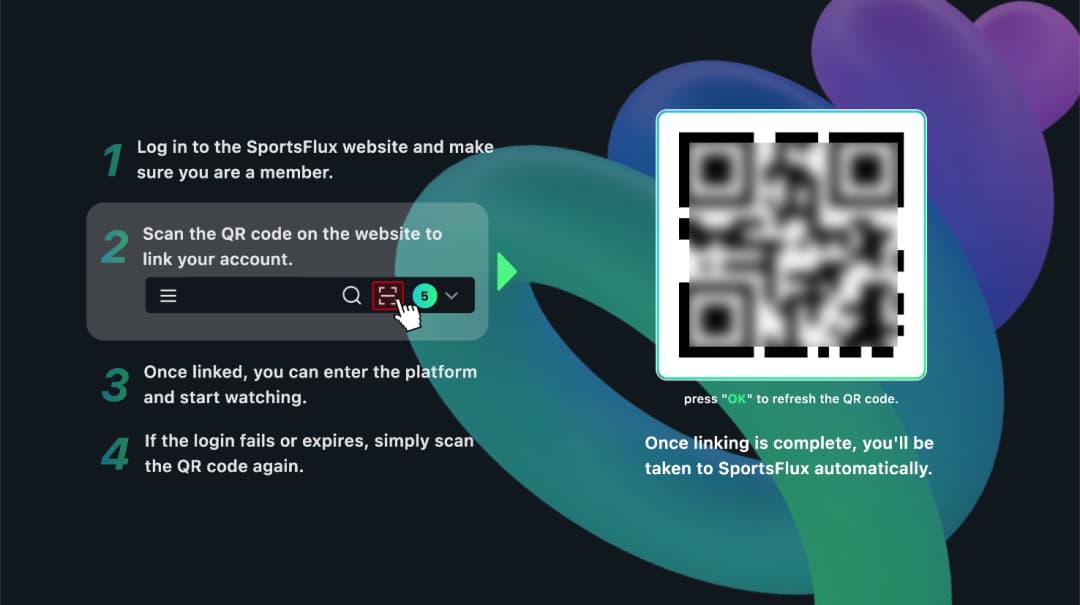
After opening our app on your TV, a QR code will appear on the TV screen for login.
Scan the QR Code on the Web
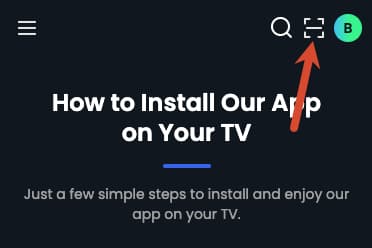
On the web app, click the scan icon in the navigation bar, scan the QR code shown on your TV, then confirm to log in.
Need Help? Contact Us
Still stuck? Reach out to our support team and we'll get you sorted.

